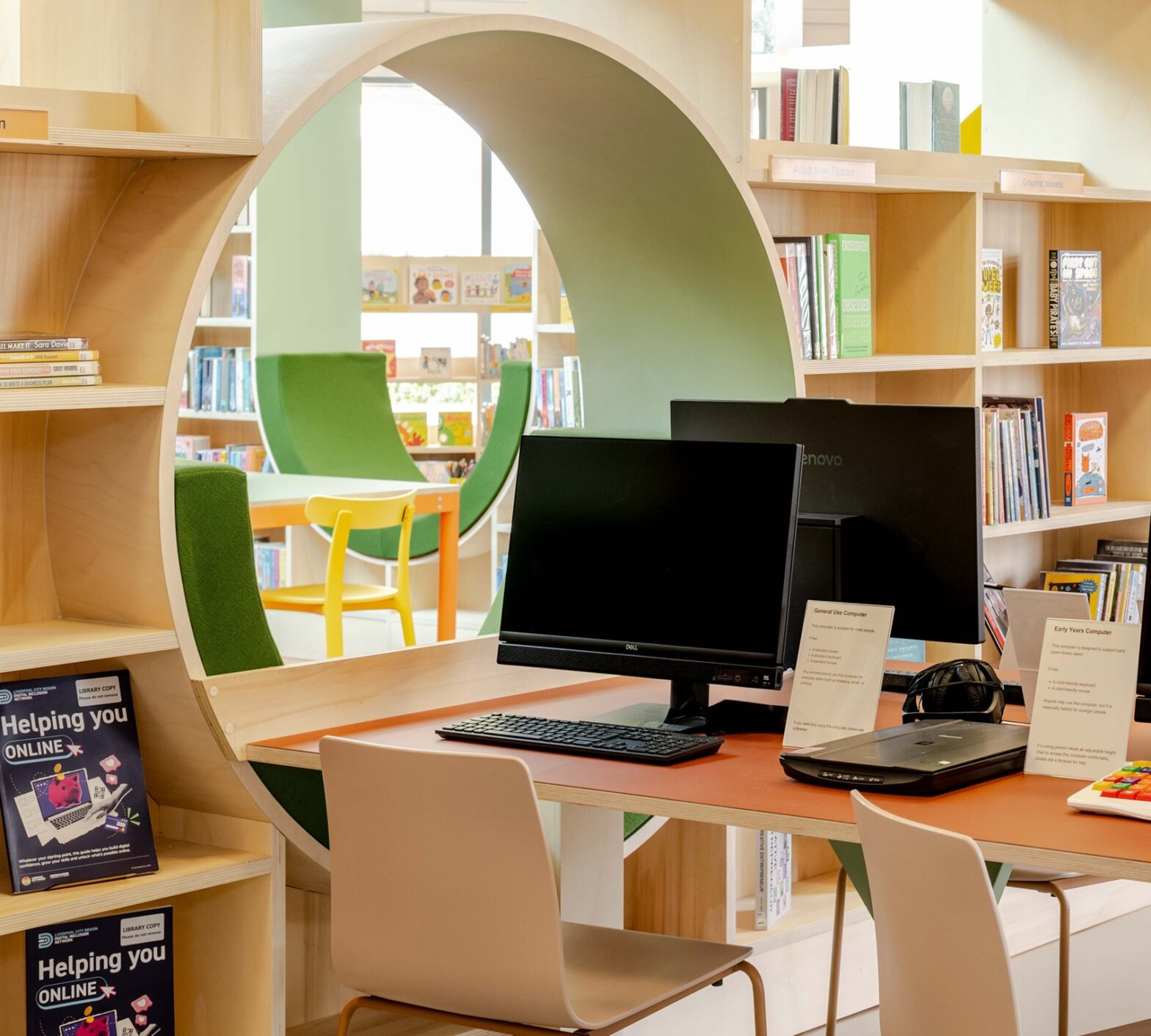
Supporting Visually Impaired Users in Libraries
April 30, 2024

Libraries are essential places of learning and information, so it’s important they are accessible to everyone. This involves considering what library PC users with visual impairments and other special needs might need.
In this article, we’ll explore practical strategies and technologies that libraries can implement to improve PC accessibility for these users. From inclusive design principles to assistive technologies, we will investigate the ways libraries can ensure that all patrons have equal access to the wealth of resources their computers offer. We have compiled a list of software and hardware for options and ideas, plus there’s a list of examples of approaches being taken by a number of libraries.
Also, we recommend you check out this RNIB (Royal National Institute of Blind People) guide on making devices more functional for visually impaired users:
Home computers and accessories for blind and partially sighted people | RNIB
For Netloan customer libraries, we encourage you to get in touch with your account manager for our guide on how Netloan supports a more accessible library environment, which includes more detailed advice.
A good place to start is by looking at the accessibility features built into Microsoft Windows. You may be surprised by the range of features already available that are really worth exploring.
Here is a list of tools that your Windows PCs already have:
Narrator is a screen reader in Microsoft Windows, the utility makes Windows operating system more accessible for blind and visually impaired users.
This is a Microsoft magnifier app intended for visually impaired people. Once running, it creates a bar at the top of the screen that magnifies where the mouse is. Magnifier has capabilities of zooming in at 1600%.
Changes the colour scheme of the Windows interface to make it easier to distinguish between different visual elements.
Allows you to control your device with your voice. It captures speech inputs through the microphone and processes those words into text or commands.
You can read more about the Microsoft tools for visually impaired people here:
The Best Windows 11 Features for the Visually Impaired | Windows Learning Center (microsoft.com)
Microsoft features will save you money and time from installing third-party software since they are already built in. However, it is still worth considering third-party software for the additional functionalities they provide.
Here is a list of third-party software to consider:
Link: www.nvaccess.org/download/
NVDA Software is a portable screen reader for Microsoft Windows. A project launched in 2006, it continues to this day as a registered charity. NVDA provides a free, open source, globally accessible screenreader to address blind people’ accessibility needs worldwide. It’s already in use by some libraries including Netloan customers, Surrey Libraries (please see example below), and Gloucestershire Libraries.
This software can be pre-installed on your library PCs and run as a service, which means it will be available straight away, even before the user logs in via Netloan. In this way, it supports users right from the start of their session, including assisting them with the log-in process.
Link: www.satogo.com
Serotek System Access is a downloadable screen reader that can be used across the system, not just the browser. Just like NVDA, this screen reader is free and can be run as a service, hence will be available as soon as you turn on the PC. Serotek offers extended versions for a fee, although it is much cheaper than other screen readers.
Link: www.support.freedomscientific.com/Downloads/JAWS
JAWS is considered to be the most popular screen reader software. JAWS is quite pricey, however it does provide a lot more features compared to the free alternatives. License price varies between £735 to £865. The name stands for Job Access with Speech with the software being very customisable, full of features to support visually impaired users.
Link: www.visionaid.co.uk/supernova-magnifier
SuperNova is designed for people with some sight. Take a look at our examples below for details on some of the public libraries making use of the solution.
With this software you will be able to either magnify the entire screen or split the screen in two, with one part being zoomed-in and the other keeping its original size for easier screen navigation. Magnification varies between 1.2 times to 64 times with you controlling it with either the keyboard or the mouse scroll button.
SuperNova offers a wide range of customizing tools such as changing the colours on the screen to make text stand out. The price for a SuperNova Magnifier license is £425. However, with Software Maintenance Agreement for Organisations you would be looking for an additional £100 charge totalling £525. Dolphin also offers an extended package of SuperNova Magnifier and Screen Reader which includes all the magnifier features and provides a fully supported screen reader solution. This package costs £1,135.
Link: www.freedomscientific.com/products/software/zoomtext
Yet another software from FreedomScientific (Developers of JAWS). ZoomText is a fully integrated magnification and reading program tailored for low-vision users. It is worth noting that different licenses are available, where some licenses include the screen reader and others don’t. ZoomText Magnifier provides a magnification up to 60 times. You would be looking at spending $800 (£648 at the time of writing) for both Magnifier and Reader license and $575 (£465 at the time of writing) for Magnifier-only license per 3 PCs.
Link: Standard KEYBOARD – Yellow – Geemarc UK
Geemarc specialises in products for people with visual impairments. This keyboard is an affordable option that provides enlarged letters on the keyboard highlighted by black on yellow design. This keyboard would be a great standard alternative, although it does not provide braille on its buttons.
Available from various suppliers, this could potentially be an affordable option for improving accessibility for blind users. Braille stickers can be applied to the keyboards you already have on top of the buttons. Since there isn’t a standardised manufacturer for these, our suggestion would be to take an initial look on Amazon for potential sources.
The headphone market is so diverse that there is never one opinion on which headset to choose. Within this article we won’t be recommending a specific headset to purchase, however here are some tips on how to choose the right one for your library:
Make sure the headset is a reasonable size and earpads are covering the entire ear
For sanitation purposes, see which material the earpads are made of, there has to be a right balance between comfort and ease of cleaning. Ideally the earpads should be covered with artificial leather or rubber material for sanitation, however, on cheap options these would quickly start tearing off and earpads would have to be replaced pretty frequently, so choose wisely
Make sure the headset has either an attachable microphone or built-in microphone for users to use services such as NHS Near Me
For visually impaired users, we recommend purchasing higher resolution and size monitors to enable all features. As mentioned before, these could be mid-tier gaming monitors from each known manufacturer such as ASUS ROG, Samsung, HP, MSI and others. The reason we suggest specifically gaming monitors is because you are able to achieve better colour, resolution and refresh rate features a lot better than on a standard office monitor while costing roughly the same. A mid-tier gaming monitor would cost you from £80 to £120. We suggest you don’t exceed this price as you wouldn’t be getting any other useful features for library use by paying more. A bigger size monitor would also result in better magnifier functionality as there would simply be more space to use within the screen.
Although this device is not specific to visually impaired users, it is potentially a great thing to have for people with motor disabilities. This mouse operates similarly to a regular mouse, but instead of moving the mouse on the desk, you would be moving the cursor using a trackball.
Just like the trackball mouse, this device is not designed for visually impaired users, however it is a good thing to have if a person has motor issues or paralysis disabilities. A head wand operates in the same way as a mouth stick does and although such users would most likely have their own device, it is good to have one just in case.
Braille displays are an option to consider if you have a more generous budget. Blind users would be able to use a braille display to read the screen. Bear in mind that these displays start at around £1800 and can go up to £5000.
Here is a list of suggestions of other ways of improving accessibility for special needs users:
Cardiff Libraries

Cardiff Library has a number of regular users with visual impairments that come into use a modified PC in their central branch. The PC uses Windows Magnifier and High Contrast mode. The High Contrast mode allows the cursor to always display in an opposite contrast colour to the page. It has a larger 32” screen and displays the biggest screen resolution by default.
The PC comes with a special keyboard with yellow keys and enlarged black text. It’s situated in a pod to minimise glare from external light sources.
Users who travel into the Central Library to use the PC will benefit further in the months to come, with plans in place for the same accessible PC provision at sites in the North, South, East and West districts.
Manchester Libraries
Computers have Supernova software, used to magnify text or convert it to speech, giving access to standard Microsoft products and the Internet. Special needs users also have extended time allowance using computers.
Sutton Libraries
Most libraries have a PC with an enhanced screen, scanner and software which makes computers accessible to those with visual impairment. Supernova is available at some libraries.
Royal Borough of Windsor and Maidenhead Libraries
Durning Library, Maidenhead Library and Windsor Library offer access to Supernova specialist software supporting users with visual impairment.
Library of Birmingham
Supernova is available on every computer and offers a screen magnifier, screen reader and support for Braille displays.
Surrey Libraries
All computers have NVDA software. This is a screen reader which enables blind and visually impaired people to hear the text in front of them read aloud, for both web pages and Word documents.
Surrey Libraries also have flat screen monitors, trackball mouse devices, large keyboards and wrist rests to address all special needs groups.
Portsmouth Libraries
At Portsmouth, IT training is provided for the visually impaired providing help for learning to use computers.
Tameside Metropolitan Borough Libraries
Tameside Libraries have equipment and software to make it easier for everybody to use the computers. Hardware and software provided include:
Trackball mouse devices, Mouse Trays, Large Keyboards, 3D Keyboards, Footrest, Wrist rest, LCD screens, Windows Magnifier and Microsoft Narrator.
We thank you for spending time to read this article – we hope it serves as a useful start for improving accessibility for library users. As you can see, there are many solutions that meet a wide range of budgets, including lots of easy and inexpensive approaches you can take to begin with. Our team is happy to assist you in making this come to life, so do not hesitate to contact us.
As mentioned above, resources from Lorensbergs include a detailed guide on getting the most from Netloan for supporting accessible facilities – please get in touch with your account manager and request a copy.
As always, we are keen on hearing more about your approaches to providing services to meet all needs, so please share and we will be happy to circulate more widely.